Photo editing is often the hardest part of the process. You have chosen your camera, and taken your pictures, but you are not done yet, you have to go through each picture with a fine tooth comb. cropping, straightening, removing faults, reducing noise, removing red-eyes, changing saturation, improving light and much, much more.
Software such as: Windows Live Photo Gallery, Picasa 3, and Photoscape, are all FREE to download.
Windows Live Photo Gallery is aimed towards beginners to make subtle improvements without having to know what or why you are doing them. The other two are aimed for those who know what the photo needs doing they just dont know how.
If you are a google chrome user, you can download apps off the googl chrome store:
Aviary Image Editor and Pixlr Editor are two reasonably good programs which again are to be used for beginners.
So we have looked at the Free and mostly basic programs. Before we start looking at the more expensive, technical programs which are aimed towards those who know what they are doing, we are going to look at the basics to editing all your pictures.
Photo editing software makes it easy to reveal the true potential of any photo. However, it's important to inspect your image with a critical eye before editing. We'll show you what to look for in your pictures, and how to decide what to keep, what to delete, and what to edit.
Learn to identify photo flaws

The correct cropping can eliminate this photo's blurred foreground and yield a keepsake portrait.

Washed-out colors diminish the appeal of a beautiful beach shot.

Don't let red-eye ruin an otherwise great photo—especially when it can be quickly fixed with editing software.
Ask yourself these questions to help determine what you should edit within your photo:
Is the photo tilted?- Check to see if your photo is crooked or level. Are people or structures tilted at an odd angle?
- Nearly all editing software includes tools that allow you to rotate and straighten your pictures.
Does the photo need cropping?
- Is the main subject of your photo overshadowed by objects in the background or by other details within the image? If so, you may want to crop out the distracting elements of your photo to focus on the portion you like.
Is the photo blurry?
- Look to see if your photo is blurry, and if the main subject is clear.
- Most photo editing software, such as Windows Live Photo Gallery or Adobe Photoshop, offers tools for decreasing the amount of blur within your photo.
Does the photo seem faded or discolored?
- If your photo appears underexposed (not enough light) or overexposed (too much light), use your software to adjust the lighting.
- Use the color correction tools in your photo editing software to boost or downplay the colors in your photo.
Does anyone in the photo have red-eye?
- Red-eye can be one of the easiest photo flaws to fix.
- Your editing software should have a tool specifically designed to remove red-eye.
Decide which editing techniques to use

Rotate the photo to ensure the main subject isn’t tilted, and then crop to remove distracting portions of the image.
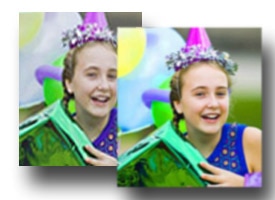
After cropping, enhance the colors and lighting within your photo.
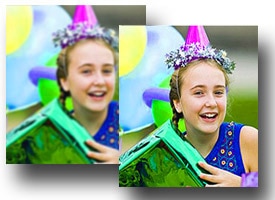
Sharpen your image for a final editing fix that will truly transform your photo.
Look closely at this photo: The colors are faded, it’s slightly blurry, and the main subject is lost behind a distracting foreground.
At first glance, you may be ready to hit delete. Yet the photo has the potential to become a treasured birthday shot, making it an ideal candidate for editing.
Make it level
- Use your Rotating or Straighteningtool to rotate the image until it's level, and to ensure that the main subject is not tilting or slanted.
Crop to emphasize
- If you crop out the other elements, this photo could make for an endearing portrait. Use your software’s Crop tool to grab the part of the photo you want.
Improve the lighting and color
- The next step in editing this photo is to adjust the lighting and the color saturation.
- Look for an Adjust exposure tool to brighten the image, and Adjust coloror Saturation tools to boost the color.
Sharpen the focus
- Now that you've cropped and enhanced the lighting and color within the photo, it’s time to improve its clarity.
- Depending on the software you use, select your Enhance or Sharpen tool. For example, the Windows Live Photo Gallery offers an Adjust detail tool that lets you quickly and easily sharpen the focus of your image.
Discover two photo editing fundamentals

Keep your original photo intact in case you’re not happy with your edits—such as cropping—and want to start over.
In addition to understanding the different techniques available to you, it's important to keep in mind a few essential photo editing tips:
Always edit on a copy of the picture
- Working from a duplicate of your image allows you to keep the original photo intact if you don't like the changes you’ve made.
Do as little as possible to get the picture you want
- Every edit you make to your photo degrades the quality of the image.
- Image quality doesn’t matter as much if you're going to e-mail your pictures or post them to a website. However, if you want to print your favorite shots, try to retain as much of the original as possible to ensure a high-quality print.
Additional Programs May Include:
Photobie
Platform: Microsoft Windows
Capabilities: View, Edit, and Create
Additional information A fantastic free image editor that has many of great features found in non-free programs and extra features such as animated GIF creator, supports many of the Adobe filters, and a 3D cube and globe generator. See the Photobie page for additional information and free downloads of this program.
GIMP
Platform: Linux, Unix, Microsoft Windows, Mac OS, and Other
Capabilities: View, Edit, and Create
Additional information A great free and open source image editor and viewer that has almost as many features as Adobe Photoshop . See the GIMP page for additional information and free downloads of this program.
Picasa
Platform: Microsoft Windows
Capabilities: View and Edit
Additional information A fantastic software program now developed by Google that allows a user to view all their images on their computer, make CDs of those images, create web pages from those images, modify the images, and much more. See the Picasa page for additional information and a free download of this program.
PhotoPlus
Platform: Microsoft Windows
Capabilities: View, Edit, and Create
Additional information Another great, free software program capable of viewing, editing, and creating photos and images. In addition to having a free photo editor and viewer, Free SerifSoftware also has free desktop publishing software (PagePlus SE), free web design software (WebPlus), free vector drawing software (DrawPlus), and even a free 3D animation software program (3DPlus). Additional information about each of these products as well as free downloads.
Mspaint
Platform: Microsoft Windows
Capabilities: View, Edit, and Create
Additional information Software image editor included with all versions of Microsoft Windows. Although, it is not capable of viewing all images and does not include the most advanced image creation tools. This program is still a good program for users who want to view images or create some basic images. See the mspaint program page for additional information about this program.
Adobe Photoshop
Platform: Microsoft Windows, Mac OS, and Other
Capabilities: View, Edit, and Create
Additional information By far one of the most advanced image editing and creation programs available. This program is for users serious about editing and creating their own images and can cost several hundred dollars. See the Adobe Photoshop page for additional information about this product or visit Adobe for additional information.
